Tutorial
In this tutorial, you’ll create user-friendly spreadsheet template for the 360Giving Data Standard schema. Along the way, you’ll create a reusable configuration file so that you can recreate the template if the schema changes.
Get set up
First, install the spreadsheet generator.
Then, download the 360Giving Data Standard Schema:
curl -O https://standard.threesixtygiving.org/en/latest/_static/360-giving-schema.json
Create a basic template
To create a basic template, run the create-template command and pass the filename of the schema.
python manage.py create-template 360-giving-schema.json --rollup
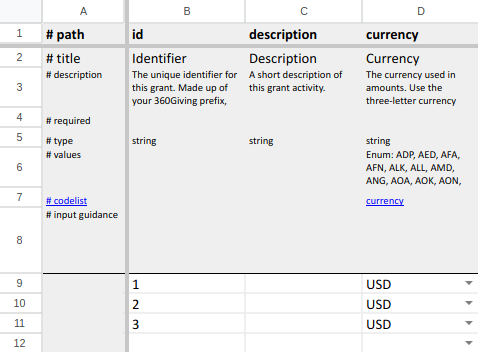
The template is saved to a file named template.xlsx. Open it in your preferred spreadsheet package and take a look at the worksheet named main.
Add drop-down lists for open codelists
Notice that there’s a drop-down list for the currency field, but not for fields that reference open codelists, like toIndividualsDetails/primaryGrantReason?


That’s because we need to specify a URL from which the codelist CSV files can be fetched. We should also specify the url at which codelist documentation is available:
python manage.py create-template 360-giving-schema.json --rollup --codelist-base-url https://raw.githubusercontent.com/ThreeSixtyGiving/standard/master/codelists/ --codelist-docs-url https://standard.threesixtygiving.org/en/latest/technical/codelists/
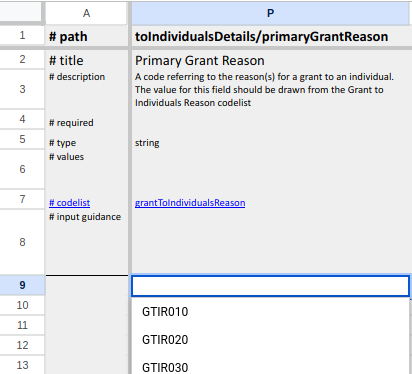
Recreate the template using the above command and look at the main worksheet again. You should see a drop-down list for toIndividualDetails/primaryGrantReason and a link to the codelist documentation:
Specify which sheets to include
There are a lot of worksheets because the template includes all of the fields in the schema.

We want the template to be user friendly, so lets remove all but the main worksheet, which represents the top-level object in the schema.
Open config.yaml in a text editor and add - main to the sheets section:
sheets:
# An ordered list of sheets to include in the template, e.g.
# - sheet1
# - sheet2
# If not specified, all sheets ouput by Flatten Tool are included in alphabetical order.
- main
Instead of passing the --rollup, --codelist-base-url and --codelist-docs-url options each time we run the command, we can set values for these options in the configuration file:
codelist_base_url: https://raw.githubusercontent.com/ThreeSixtyGiving/standard/master/codelists/
codelist_docs_url: https://standard.threesixtygiving.org/en/latest/technical/codelists/
rollup: true
Now, let’s create a template using the configuration file:
python manage.py create-template 360-giving-schema.json -c config.yaml
Ignore the warnings about skipped sheets and re-open template.xlsx in your spreadsheet package.
Now we have a single worksheet, but there’s still a lot of columns:

Specify which fields to include
Let’s further simplify the template by specifying a subset of fields from the schema in config.yaml:
include_fields:
# A list of fields to include in the template. When set, all other fields in the schema are omitted from the template. Specify fields using JSON Pointer syntax, e.g.
# - path/to/field
# - path/to/array/0/field
# You cannot set both include_fields and exclude_fields in the same config file.
- id
- description
- currency
- amountAwarded
- awardDate
- plannedDates/0/startDate
- plannedDates/0/endDate
- plannedDates/0/duration
- recipientOrganization/0/id
- recipientOrganization/0/name
- recipientOrganization/0/charityNumber
- recipientOrganization/0/companyNumber
- recipientOrganization/0/postalCode
- fundingOrganization/0/id
- fundingOrganization/0/name
- grantProgramme/0/title
- beneficiaryLocation/0/name
- dateModified
- dataSource
Recreate the template using the updated configuration file:
python manage.py create-template 360-giving-schema.json -c config.yaml
Add user guidance
The template already shows which fields are required (mandatory). In JSON Schema, all other fields are optional, but what if we want to recommend that users populate some of the optional fields?
We can specify per-field user guidance by adding a user_guidance section to our configuration file:
field_guidance:
  plannedDates/0/startDate: Recommended
  plannedDates/0/endDate: Recommended
  plannedDates/0/duration: Recommended
  recipientOrganization/0/charityNumber: Recommended
  recipientOrganization/0/companyNumber: Recommended
  recipientOrganization/0/postalCode: Recommended
  grantProgramme/0/title: Recommended
  beneficiaryLocation/0/name: Recommended
Recreate the template using the same command as in previous steps and open it in your spreadsheet package. Notice how the guidance specified for each field appears on the # input guidance row:

Specify fixed values
To make our template even easier to use, we can specify a fixed value for the currency field so that users don’t need to enter the same information for each row of data that they enter:
fixed_values:
  currency: GBP
Recreate the template and notice try entering some data in cells B9, B10 and B11. Notice how the currency field is populated automatically.

Specify user-editable variables
What if we want spreadsheet users to choose their own currency? We can specify a user-editable currency variable with a default value of ‘GBP’ in our configuration file:
variables:
  currency: GBP
Recreate the template and notice that there is now an extra # Variables sheet which includes our user editable variable.

Now, we can use this variable in a custom formula to set the value of the currency field. First, remove the fixed_value entry for currency that we added in the previous step, then add the following formula:
formulae:
  currency: =IF(B{row}="","",currency)
Recreate the template, change the value of the currency variable to ‘USD’ and enter some data in cells B9, B10 and B11 of the main sheet. Notice how the currency column is populated automatically using the formula above.